



TGB/Tutorials/Platformer/Player
From TDN
 |
Platformer Mechanics TutorialWritten for TGB Version: 1.7.2 |
|
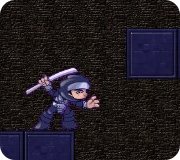
In the EditorTo start off, we need to have a player object in the scene we created in the previous section. From the "Animated Sprites" rollout in the "Create" section of right sidebar, drag the thumbnail that represents the "PlayerStandAnimation" out onto the level. The exact position of the animated sprite is not too important in Y Direction (Figure 2.1), once gravity is turned on the player will drop to the floor when the scene is loaded.  Figure 2.1
 Figure 2.2
 Figure 2.3
 Figure 2.4

 Figure 2.6
Keyboard InputIt's time to write a script that will control the actions of our player. In your ./games/MiniPlatformer/gameScripts folder create a file named playerClass.cs. In order for TGB to recognize this new file, we need to add an exec statement to the existing script file game.cs. Change the startGame function to look like the following:
function startGame(%level)
{
   exec("./playerClass.cs");

   Canvas.setContent(mainScreenGui);
   Canvas.setCursor(DefaultCursor);

   new ActionMap(moveMap);
   moveMap.push();

   $enableDirectInput = true;
   activateDirectInput();
   enableJoystick();

   sceneWindow2D.loadLevel(%level);
}
function playerClass::onLevelLoaded(%this, %scenegraph)
{
     $player = %this;

      moveMap.bindCmd(keyboard, "left", "playerLeft();", "playerLeftStop();");
      moveMap.bindCmd(keyboard, "right", "playerRight();", "playerRightStop();");
      moveMap.bindCmd(keyboard, "space", "playerJump();", "");

      %this.enableUpdateCallback();
}
function playerLeft()
{
    $player.moveLeft = true;
}

function playerLeftStop()
{
    $player.moveLeft = false;
}

function playerRight()
{
     $player.moveRight = true;
}

function playerRightStop()
{
     $player.moveRight = false;
}

function playerJump()
{
     if(!$player.airborne)
     {
          $player.setLinearVelocityY(-150);
          $player.airborne = true;
     }
}
Player MovementGreat! Now we are tracking the keystates. But that doesn't really get us anywhere in terms of a game. We need our player to respond to those keystates and actually MOVE!
function playerClass::updateHorizontal(%this)
{
   if (%this.moveLeft == %this.moveRight)
   {
      %this.setLinearVelocityX(0);
      return;
   }

   if (%this.moveLeft)
   {
      if (!%this.againstLeftWall)
      {
         %this.againstRightWall = false;
         %this.setLinearVelocityX(-30);
      }
   }

   if (%this.moveRight)
   {
      if (!%this.againstRightWall)
      {
         %this.againstLeftWall = false;
         %this.setLinearVelocityX(30);
      }
   }
}
function playerClass::updateVertical(%this)
{
   %yVelocity = %this.getLinearVelocityY();

   %this.setLinearVelocityY(5);
   %collision = %this.castCollision(0.005);

   %normalX = getWord(%collision, 4);
   %normalY = getWord(%collision, 5);

   // no collision
   if (%collision $= "")
   {
      %this.airborne = true;
      %this.setConstantForceY(100);
      %this.setLinearVelocityY(%yVelocity);
      return;
   }

   // collides with wall to the left
   if (%normalX == 1 && %normalY == 0)
   {
      %this.againstLeftWall = true;
      %this.setLinearVelocityX(0);
      %this.setLinearVelocityY(%yVelocity);
      return;
   }

   // collides with wall to the right
   if (%normalX == -1 && %normalY == 0)
   {
      %this.againstRightWall = true;
      %this.setLinearVelocityX(0);
      %this.setLinearVelocityY(%yVelocity);
      return;
   }

   // on ground with no wall collisions
   if (%normalX == 0 && %normalY == -1)
   {
      %this.airborne = false;
      %this.againstLeftWall = false;
      %this.againstRightWall = false;
      %this.setConstantForceY(0);
      %this.setLinearVelocityY(%yVelocity);
      return;
   }

   // in air and hits platform with head
   if (%normalY == 1)
   {
      %this.airborne = true;
      %this.setLinearVelocityX(0);
      %this.setConstantForceY(100);
      %this.setLinearVelocityY(%yVelocity);
      return;
   }

   // in case another type of collision normal was detected
   error("another collison type" SPC %normalX SPC %normalY);
   %this.airborne = false;
   %this.againstLeftWall = false;
   %this.againstRightWall = false;
   %this.setLinearVelocityY(%yVelocity);
}
 Figure 2.7
function playerClass::onUpdate(%this)
{
   %this.updateHorizontal();
   %this.updateVertical();
   %this.setCurrentAnimation();
}
Animating the PlayerIt would look rather unbelieveable if the player moves and jumps looking like it does now with just the "stand" animation. We need a way to detect what type of movement (horizontal/vertical) is happening every moment and update the player animation state accordingly. We have already added a call to a setCurrentAnimation in our onUpdate callback, so let's add this now:
function playerClass::setCurrentAnimation(%this)
{
   %xVelocity = %this.getLinearVelocityX();
   %yVelocity = %this.getLinearVelocityY();

   if (%xVelocity > 0)
   {
      %this.setFlip(false, false);
   }
   else if (%xVelocity < 0)
   {
      %this.setFlip(true, false);
   }

   if (%this.airborne)
   {
      if(%yVelocity < 0)
      {
         %this.playAnimation(PlayerJumpUpAnimation);
         return;
      }else
      {
         %this.playAnimation(PlayerJumpDownAnimation);
         return;
      }
   }

   if ($player.moveLeft == true || $player.moveRight == true)
   {
      if (%this.getAnimationName() $= "playerRunAnimation")
      {
         if(%this.getIsAnimationFinished())
         {
            %this.playAnimation(PlayerRunAnimation);
            return;
         }
      }else
      {
         %this.playAnimation(PlayerRunAnimation);
      }
   }else
   {
      %this.playAnimation(PlayerStandAnimation);
   }
}
Player Control via a BehaviorWork in progress behavior to replace the movement and animation code found in this section:
//-----------------------------------------------------------------------------
// Torque Game Builder
// Copyright (C) GarageGames.com, Inc.
// WIP Behavior by Mike Lilligreen
//-----------------------------------------------------------------------------

if (!isObject(PlatformerControlsBehavior))
{
   %template = new BehaviorTemplate(PlatformerControlsBehavior);

   %template.friendlyName = "Platformer Controls";
   %template.behaviorType = "Input";
   %template.description  = "Platformer style movement control";

   %template.addBehaviorField(leftKey, "Key to bind to left movement", keybind, "keyboard left");
   %template.addBehaviorField(rightKey, "Key to bind to right movement", keybind, "keyboard right");
   %template.addBehaviorField(jumpKey, "Key to bind to jump movement", keybind, "keyboard space");

   %template.addBehaviorField(horizontalSpeed, "Speed when moving horizontally", float, 20.0);
   %template.addBehaviorField(jumpSpeed, "Speed when jumping", float, -150.0);
   %template.addBehaviorField(gravity, "Force of gravity", float, 100.0);
}

function PlatformerControlsBehavior::onBehaviorAdd(%this)
{
   if (!isObject(moveMap))
      return;

   moveMap.bindObj(getWord(%this.leftKey, 0), getWord(%this.leftKey, 1), "moveLeft", %this);
   moveMap.bindObj(getWord(%this.rightKey, 0), getWord(%this.rightKey, 1), "moveRight", %this);
   moveMap.bindObj(getWord(%this.jumpKey, 0), getWord(%this.jumpKey, 1), "jumpAction", %this);

   %this.left = 0;
   %this.right = 0;
   %this.jump = 0;
}

function PlatformerControlsBehavior::onBehaviorRemove(%this)
{
   if (!isObject(moveMap))
      return;

   moveMap.unbindObj(getWord(%this.leftKey, 0), getWord(%this.leftKey, 1), %this);
   moveMap.unbindObj(getWord(%this.rightKey, 0), getWord(%this.rightKey, 1), %this);
   moveMap.unbindObj(getWord(%this.jumpKey, 0), getWord(%this.jumpKey, 1), %this);

   %this.left = 0;
   %this.right = 0;
   %this.jump = 0;
}

function PlatformerControlsBehavior::moveLeft(%this, %val)
{
   %this.left = %val;
   %this.updateMovementX();
   %this.updateAnimation();
}

function PlatformerControlsBehavior::moveRight(%this, %val)
{
   %this.right = %val;
   %this.updateMovementX();
   %this.updateAnimation();
}

function PlatformerControlsBehavior::jumpAction(%this, %val)
{
   %this.jump = %val;
   %gravity = %this.owner.getConstantForceY();

   if (!%gravity)
      %this.updateMovementY();

   %this.updateAnimation();
}

function PlatformerControlsBehavior::updateMovementX(%this)
{
   %this.owner.setLinearVelocityX((%this.right - %this.left) * %this.horizontalSpeed);

   // Here we get a point just below the player object
   %positionX = %this.owner.getPositionX();
   %positionY = %this.owner.getPositionY();
   %sizeY = %this.owner.getSizeY() / 2;
   %pointY = %positionY + %sizeY + 1;
   %point = %positionX SPC %pointY;

   // Get the scene graph and then use pick point to find out if a platform is
   // below the player. If there is no platform below the player, gravity is
   // turned on. Note that platforms are all in group 1, objects in any other
   // group are ignored.
   %sceneGraph = sceneWindow2D.getSceneGraph();
   %object = %sceneGraph.pickPoint(%point, bit(1));

   if (!isObject(%object))
      %this.owner.setConstantForceY(%this.gravity);

   if (%this.right || %this.left)
      %this.schedule(100, "updateMovementX");
}

function PlatformerControlsBehavior::updateMovementY(%this)
{
   %this.owner.setLinearVelocityY(%this.jump * %this.jumpSpeed);

   if (%this.jump)
   {
      %this.owner.setConstantForceY(%this.gravity);
   }
}

function PlatformerControlsBehavior::updateAnimation(%this)
{
   %xVelocity = %this.owner.getLinearVelocityX();
   %yVelocity = %this.owner.getLinearVelocityY();

   if (%xVelocity > 0)
   {
      %this.owner.setFlip(false, false);
   }
   else if (%xVelocity < 0)
   {
      %this.owner.setFlip(true, false);
   }

   if(!%yVelocity == 0)
   {
      //%this.owner.playAnimation(PlayerJumpUpAnimation);
      //return;
   }

   if (!%xVelocity == 0)
   {
      if (%this.owner.getAnimationName() $= "playerRunAnimation")
      {
         if(%this.owner.getIsAnimationFinished())
         {
            %this.owner.playAnimation(PlayerRunAnimation);
            return;
         }
      }else
      {
         %this.owner.playAnimation(PlayerRunAnimation);
      }
   }else
   {
      %this.owner.playAnimation(PlayerStandAnimation);
   }
}

function PlatformerControlsBehavior::onCollision(%srcObject, %dstObject, %srcRef, %dstRef, %time, %normal, %contacts, %points)
{
   // Only turn off gravity if the player's "feet" collide with the ground
   %normalY = getWord(%normal, 1);

   if (%normalY == -1)
   {
      // turn gravity off
      %srcObject.owner.setConstantForceY(0);

      // get the location of the top surface of the platform
      %platformPosY = %dstObject.getPositionY();
      %platformSizeY = %dstObject.getSizeY() / 2;
      %topSurface = %platformPosY - %platformSizeY;

      // get the size of the player to place the feet on the top surface of the platform properly
      %sizeY = %srcObject.owner.getSizeY() / 2;
      %srcObject.owner.setPositionY(%topSurface - %sizeY);

      // have the player inherit the velocity of the platform
      %platformVelocity = %dstObject.getLinearVelocityY();
      %srcObject.owner.setLinearVelocityY(%platformVelocity);
   }

   %srcObject.updateAnimation();
}
|
