|
Creating a Title Screen
In the TGB Editor file menu, select New Scene... to create a new level to work with. With this blank scene, we can now get to work creating a suitable title screen for the player. Typical features for a title screen include a way to select a new game, a saved game, options, credits, or to exit. This tutorial will only set up a "new game" and "quit" button, but adding anything else using this template should not be too difficult.
Drag the background_bImageMap into the scene and set it to fill the entire camera view. Then drag out 2 "buttons" using the objects_bricksImageMap. Place them wherever you wish in the camera view.
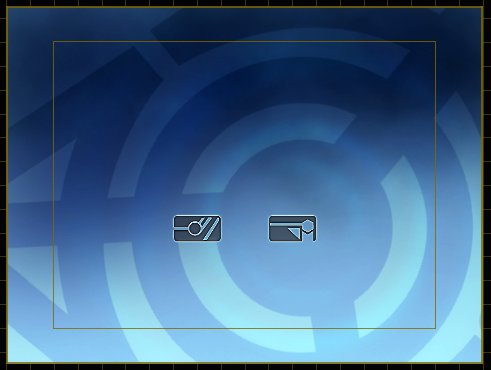
Feel free to add some text below the buttons for "New Game" and "Quit" using a t2dTextObject. You can also add the game title with a text object or add an ImageMap with a graphical display of the title of your game.
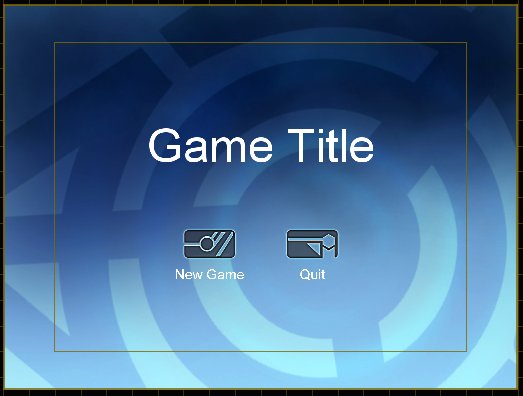
Your basic title screen is now set up, but all it is right now is a bunch of sprites and text. Let's change that. Save your scene with whatever name you wish (example: titleScreen.t2d) and exit TGB.
Button Behaviors
If you have followed this tutorial from section 1, you should already have the behavior file genericButton.cs in your behaviors folder. If not, you can copy if from the behavior playground project that comes with TGB and add it to your project. Open this behavior up in your text editor and change the onMouseUp function to look like this:
function GenericButtonBehavior::onMouseUp(%this, %modifier, %worldPos)
{
   if (isObject(%this.hoverImage))
      %this.owner.setImageMap(%this.hoverImage, %this.hoverFrame);
   else
      %this.owner.setImageMap(%this.startImage, %this.startFrame);

   if (%this.isMethod(%this.method))
   {
      %this.call(%this.method);
   }
}
Now add the following functions to the bottom of the file:
function GenericButtonBehavior::onClickQuit(%this)
{
   quit();
}

function GenericButtonBehavior::onClickNew(%this)
{
   alxStop($backgroundMusic);
   schedule(100, 0, "newGame");
}
onClickQuit should be fairly obvious for what button it will be used for. onClickNew also tells us what button it belongs to. Here, it also has the double function of being able to be used for a button to start a new game after an existing game is over, for example. This is why alxStop is there; any background music that is playing will stop and start playing again when the scene is reloaded. If we did not have this, resetting the game would have 2 instances of the background music playing on top of each other and probably doesn't sound all that good. onClickNew then schedules calling the newGame function instead of calling it directly because when newGame calls sceneWindow2D.loadLevel it would attempt to unload the New Game button while it's still being used, leading to crash. Using schedule to call newGame will create a calling stack that is not attached to any object in the level being unloaded so that the next level will load properly. Where is this newGame function though?
Save the behavior and open up game.cs in your gameScripts folder. At the bottom of the file add this:
function newGame()
{
   %level = "game/data/levels/mainLevel.t2d";

   if (isFile(%level))
   {
      sceneWindow2D.loadLevel(%level);
   }
}
If you have named your main gameplay level something other than mainLevel.t2d, you can change it here. Save game.cs and start TGB again.
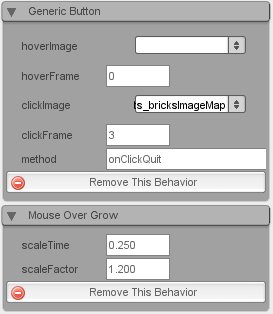
Click on the sprite for the new game button and on the edit tab add the generic button behavior. You can also add the mouse over grow if you wish. Edit the method field to call the onClickNew function.
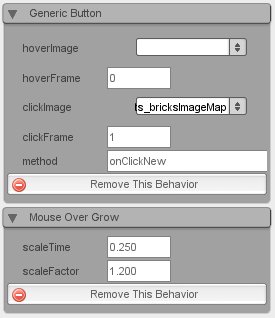
Do the same thing for the quit button sprite, with the method field having onClickQuit.
Save your scene again and hit the play button to try your new title screen out. If everything was correctly followed, you can now either quit out or the better choice, start a game of your top down shooter.
Conclusion
With this finished, the Asteroids tutorial series is now at an end. Go ahead and continue to experiment with the behaviors to modify or add things to the game or use what you have learned in other game genres. Thanks for taking the time to go through some or all of the tutorial sections, if you have any questions or comments - feel free post them in the public or private TGB forums on the GarageGames website.
Return to the Asteroids Tutorial Hub
|