From TDN
 |
Splash Screen Tutorial
Written for TGB Version: 1.7.1
Overview
A simple tutorial that covers adding splash screens to your game via a behavior. |
Introduction
The indie and commercial license agreement for TGB specifies that a full screen Torque Game Builder logo needs to be displayed during the game start up process. Torque Logo Kits can be found here. You can also use this behavior for displaying other splash screens like your company logo, for example.
Diving In
Download the Splash Screen Behavior. Unzip the file and add it to your project's behaviors folder. Add the appropriate logo to your game's data/images folder. Now you can start TGB.
Inside TGB, add the logo by creating an ImageMap of it. Once that is done, in the file menu choose New Scene... so we have a fresh level to work with. Drag the logo ImageMap into the middle of the camera view and make sure it takes up the entire area of the camera.

In the edit tab, add the splash screen behavior to the logo. You can now configure different options. Fade in and fade out time configures how long the fade process takes. Wait time specifies how long the screen should display between the fade in/out transitions. The Level field is where you type in the name of the level file you want to transition to next. Important for this field is that you include the .t2d extension. This level file can be another splash screen, the game title screen, or the main game level you have set up in TGB. The last option is whether or not to allow the player to click through the splash screen before the full display time is up.
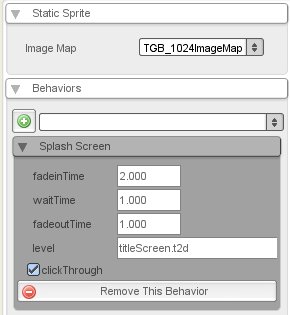
Save the scene as SplashScreen.t2d or whatever other name you wish. You can test your screen out now by clicking the play button. It is also important to remember that when you deploy your game via Build Project... that the startup scene specified is the first splash screen you wish to display.
Further Reading
In addition to this method, you can also create splash screens with a GuiFadeinBitmapCtrl. Tutorials for this method can be found in the archive or by clicking here.
|






