|
For Blender 2.4+ (Windows)
1. Go to the Blender3d.org website. Go up to the download button on the top of the page. Be sure to select the windows platform that you're using. If your location link is down, try using another, it isn't much slower.
**NOTE** The Blender 2.4 Windows Installer includes Python to make the install simple.
2. Start the installation executable (If your browser doesn't automatically for you). Follow the instructions of the installer...
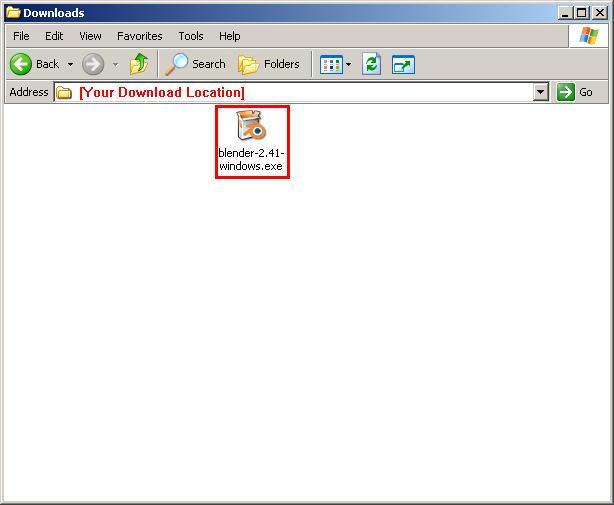
3. Leave the installation directory alone, unless you know what you're doing.
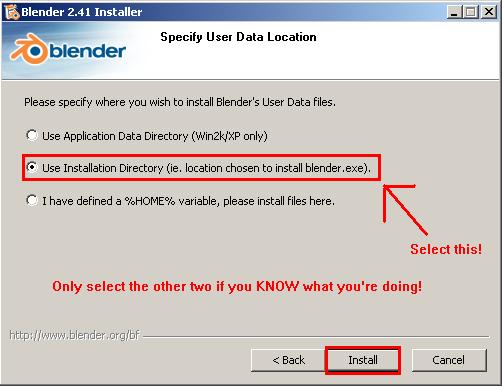
4. On step 'Specify User Data Location', Select the one designating the Installation directory.
5. Download the DTS Exporter from here.
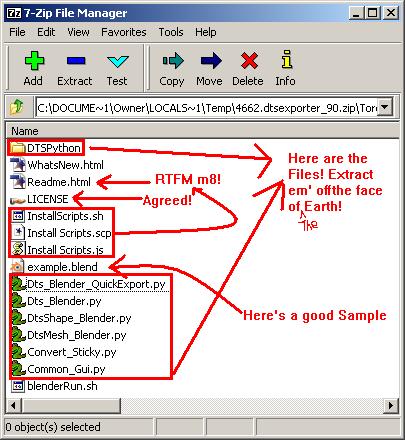
6. Open the zip file using a zip file program (e.g. WinZip, WinRAR, 7-Zip, etc.)
7. Open the folder: C:\Program Files\Blender Foundation\Blender\.blender\scripts.
Note: Replace C with whatever drive letter you use.
8. Extract the following files to the previously mentioned folder:
DTSPython -THE ENTIRE FOLDER
Dts_Blender_QuickExport.py
Dts_Blender.py
DtsShape_Blender.py
DtsMesh_Blender.py
Convert_Sticky.py
Common_Gui.py
Note: If you did not use the default install directory (Step 3), or the default User Data Location (Step 4), then you're on your own.
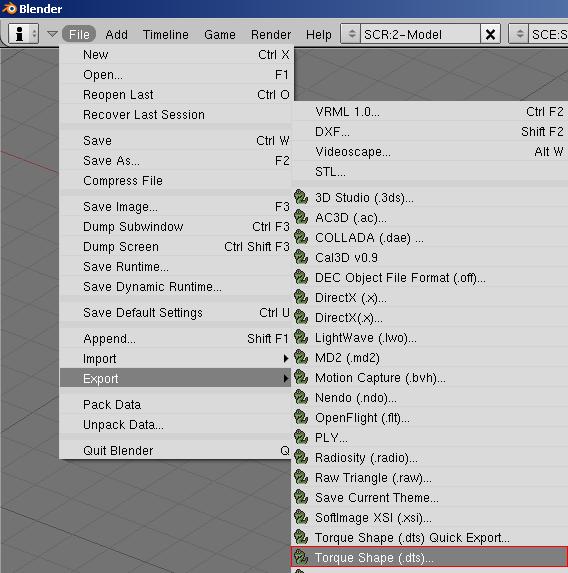
9. Start Blender, Go to File>Export>Torque Shape (.dts). At the bottom, the Exporter window will display.
10. Follow the provided readme and enjoy. (Just don't hurt yourself)
For Blender 2.4+ (*nix)
These instructions tested with DTSExporter_90.zip and blender2.42a (linux dynamic, python2.3, i386) on debian linux (etch)
0. Ensure that there is a directory called .blender in your home directory. If there isn't, copy the one contained in the blender install for linux archive
1. Extract the .zip somewhere temporarily
2. Edit the file Torque_Exporter_90/InstallScripts.sh, line 31 from:
if ( p -Rfv Dts_Blender.py DtsShape_Blender.py DtsMesh_Blender.py ...
to:
if ( cp -Rfv Dts_Blender.py DtsShape_Blender.py DtsMesh_Blender.py ...
3. Make the install script executable: chmod +x InstallScript.sh
4. Run the install script: ./InstallScript.sh (from within Torque_Exporter_90)
There is a newer version available: DTSExporter_0963.zip, which requires at least blender 2.46+
I had issues trying to use the version of blender that uses python2.4, but that's probably just my system
The steps for making this work (with the above linked versions of blender) are:
0. Ensure that there is a directory called .blender in your home directory. If there isn't, copy the one contained in the blender install for linux archive
1. Extract the .zip somewhere temporarily
2. Change to the DTSExporter_091 directory extracted from the archive
3. Make the installer executable: chmod +x "Install Scripts.sh"
4. Run the installer: "./Install Scripts.sh" (note that the double quotes must be typed to prevent the space in the filename from causing a problem)
For Blender 2.4+ (Mac)
Using Terminal to install scripts
1. Download the DTS exporter onto your desktop and double-click the .zip file to extract it. This should create a directory on your desktop, which is currently "DTSExporter_091"
2. Open Terminal.app (located in /Applications/Utilities/) and cd into your Blender app directory. If blender.app is located directly in the Applications folder, you would type the following:
cd /Applications/blender.app/Contents/MacOS/.blender/scripts
3. Move all of the python scrips from the downloaded file to the scripts directory. Note that there is a space and a period directly following the *.py!
mv ~/Desktop/DTSExporter_091/*.py .
4. Now do the same thing with the DTSPython directory:
mv ~/Desktop/DTSExporter_091/DTSPython .
That's it!
For Blender 2.37 and below
Note: Not guaranteed to work. You might as well use the latest version.
1. Install the latest version of Python 2.3, available at http://www.python.org. Do NOT use Python 2.4
or above. As of the time of this article, the exporter doesn't support Python 2.4. (I use Python 2.3.5 and it works fine)
2. Extract the scripts to the directory where your copy of blender looks for python scripts for inclusion into the Import/Export menus.
Eg. In Windows, install it into:
C:\Documents and Settings\username\Application Data\Blender Foundation\Blender\.blender\scripts
On Unices, like Linux or BSD:
/home/username/.blender/scripts
3. Ensure your "PYTHONPATH" environment variable is set accordingly so that it also includes the directory where the python scripts are located.
An example of how to do this is located here.
To do this in In Windows XP, right-click on "My Computer". Choose "Properties," and go to the "Advanced" tab. Click the "Environment Variables"
button. In this window, if you don't already have a PYTHONPATH variable, you need to click "NEW". If you already have this variable, select it and click "EDIT".
Name the "Variable Name" PYTHONPATH. Add your path to the Torque_Exporter directory in the "Variable Value" field
4. Run blender to ensure the "Torque DTS Exporter" item is located on the "Export" menu. If not, go to the scripts window, and under the scripts menu, choose "Update Menus".
Modified and extended from the Readme file for the exporter. If anyone would care to elaborate further. Done. :)
|





