Now that you have created
and saved your new GUI control as well as your new button control, we will tie
them together and create a clickable button that launches your Hello World
window!
In order to do so, we have
to tell the engine that we're using a new GUI element. For this to happen,
we'll have to add a simple line to some script code.
To add the script code, first browse to the location of the game example you are working in. Once there, browse to the "client" directory.
Now, find and open the
file "init.cs"
in your favorite text editing program. The screenshots below use Torsion.
Once you have the file
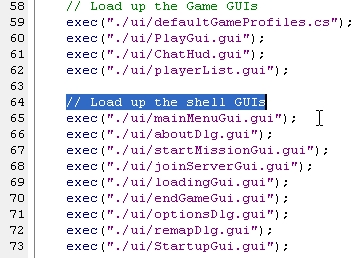
open, look for the block of code that starts with the comment: // Load up
the shell GUIs (Shown in Figure 44)
Figure
44
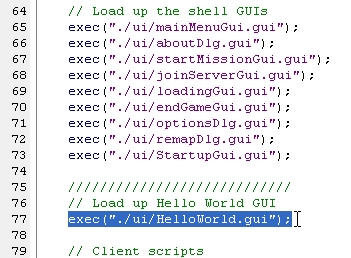
Just after the last line in that block of script, we should
add a command that executes our HelloWorld
GUI. In simple terms, executing
means we are loading the script and all the data/functions/variables it
contains. So, our GUI does not
exist until it is executed. See
Figure 45 for the command (which is highlighted and has a fancy comment above)
to execute your file.
Figure
45
It is extremely important that you enter the line above
exactly as you see it. Otherwise,
on top of your GUI not loading, the init.cs file will
not compile. Once you are confident
you have entered the code correctly, save your file. If you are running from Torsion, you can
go ahead and launch your TGE application if the project is ready. Otherwise, run from your compiler or
from the executable directly.
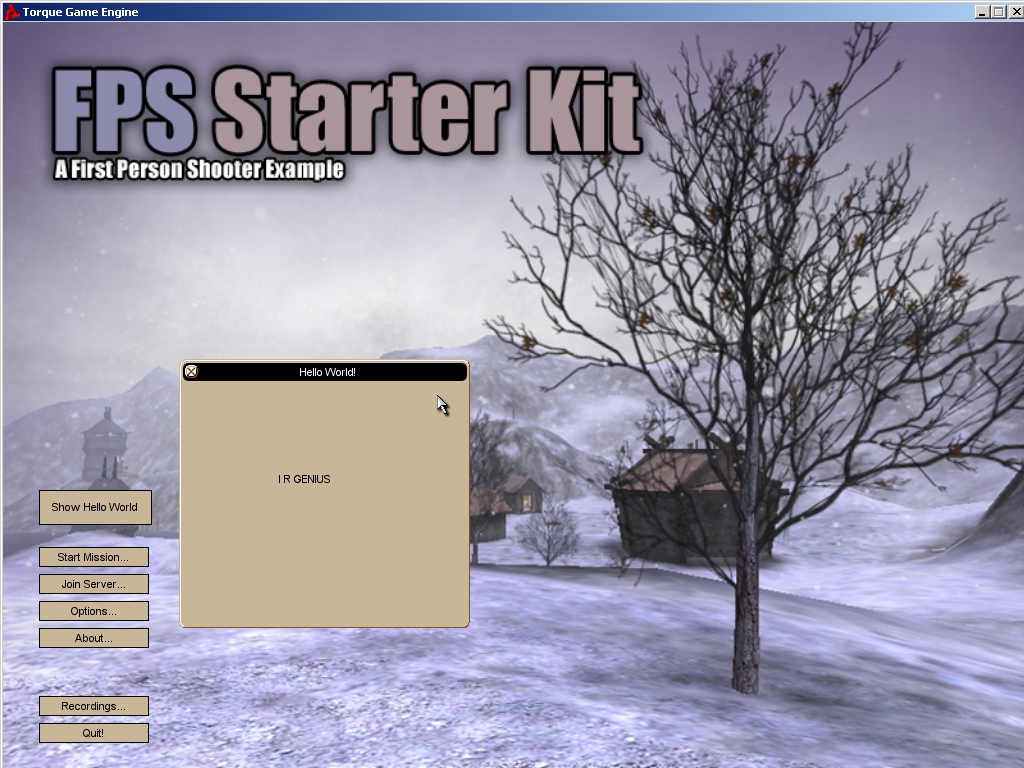
Now, run your TGE application. When the Main Menu appears, click the
“Show Hello World”
button and you should see something similar to what is shown in Figure 48. The Hello
World window should appear, displaying your text (Figure 48). When you click the [X] button, the window should disappear. If the dialog does not appear/disappear
correctly, double check all the steps in this chapter to see if you made a
mistake. Also, remember that any
errors you receive will be shown in the Console window,
and your console.log
file in the base directory.
Figure
48
If all has gone well, then congratulations on getting your first GUIs created.
In this section, we introducted Torque's GUI Editor, one of the unique features of the
engine. We created very simple controls, but the GUI Editor can be used to
create advanced, great-looking user interfaces.
At this point, you should
have a basic understanding of how the GUI Editor works in general. From here,
you can experiment and play around, creating various GUI elements, and
assigning them different profiles and properties. Follow the steps in this guide
whenever you create a control, adapting them to your particular situation, and
you'll begin creating some cool stuff in no time.